Record and Share Your Name Pronunciation in Microsoft 365
 At the University of Miami, every name tells a story—and saying it correctly is a simple but meaningful way to show respect and build stronger connections.
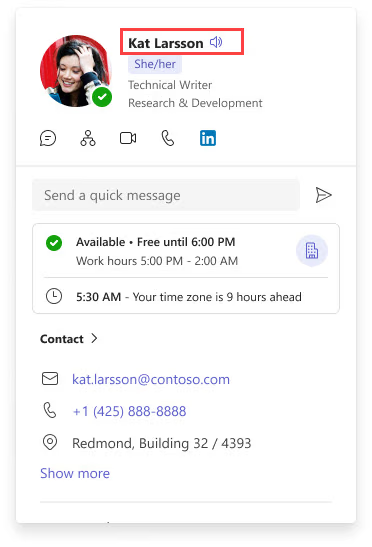
Microsoft 365 now makes it easy to record and display the pronunciation of your name directly on your profile card. By taking a moment to add this feature, you help colleagues and collaborators feel more confident when addressing you—removing guesswork and fostering a more welcoming, inclusive community.
It only takes a minute to set up. Learn how to record, update, and manage your name pronunciation below.
Add Your Name Pronunciation
1. Open your profile card* in Microsoft Teams or Outlook on the Web.
2. On your profile card, select the microphone icon located next to your name.
3. In the dialogue window, select the microphone button to record an audio clip. The maximum length is 10 seconds.
4. Select the icon again to stop the recording.
5. You can choose to save, preview, or retake the recording.
6. Once you save, your profile card is updated immediately.
Change or Delete Your Name Pronunciation
1. Open your profile card* in Microsoft Teams or Outlook on the Web.
2. On your profile card, select the speaker icon located next to your name.
3. To delete, select the trash icon to delete the recording.
4. Select Yes, delete to confirm. The recording is deleted and your profile card will no longer have a recording of your name pronunciation. To record a new audio clip, select the microphone icon.
*Looking for your profile card? Review this Microsoft support article for details and visuals. For example, using Outlook on the Web, you can quickly get to your profile card by hovering over your profile photo within an active email message.
For technical support at any time, please contact the 24/7 IT Service Desk.